
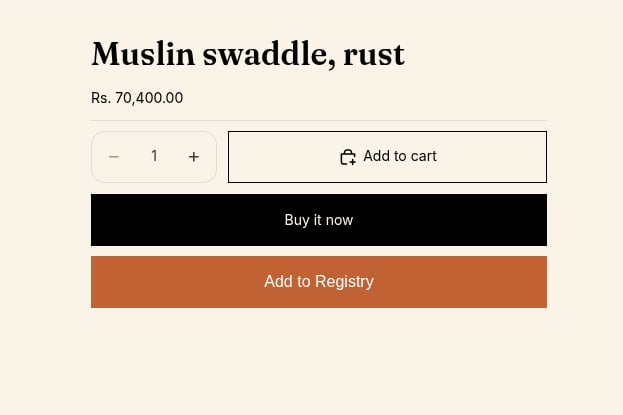
The button needs the app embed to be on. The window it opens is loaded by the app embed.
Add the block in the theme editor
1
Open the product template
Go to Online Store → Themes → Customize, then choose Products → Default product from the page menu at the top.
2
Add the block
In the product information section, click Add block, open the Apps tab and choose Registry Add Button.You can also use the shortcut in the app: Settings → Integrations & Theme → Customize Product Button.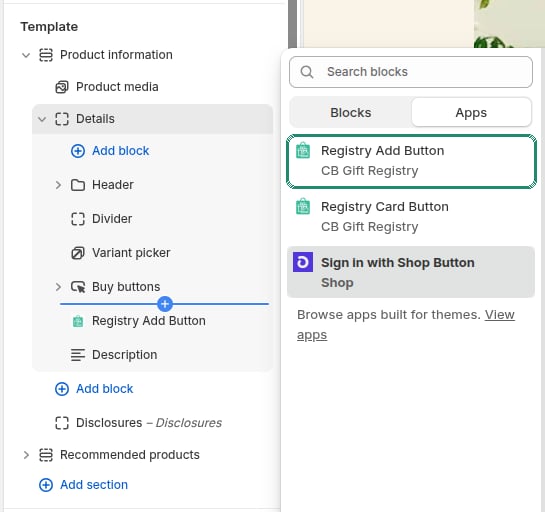
3
Place it
Drag the block next to your Add to cart button, then click Save.
Block settings
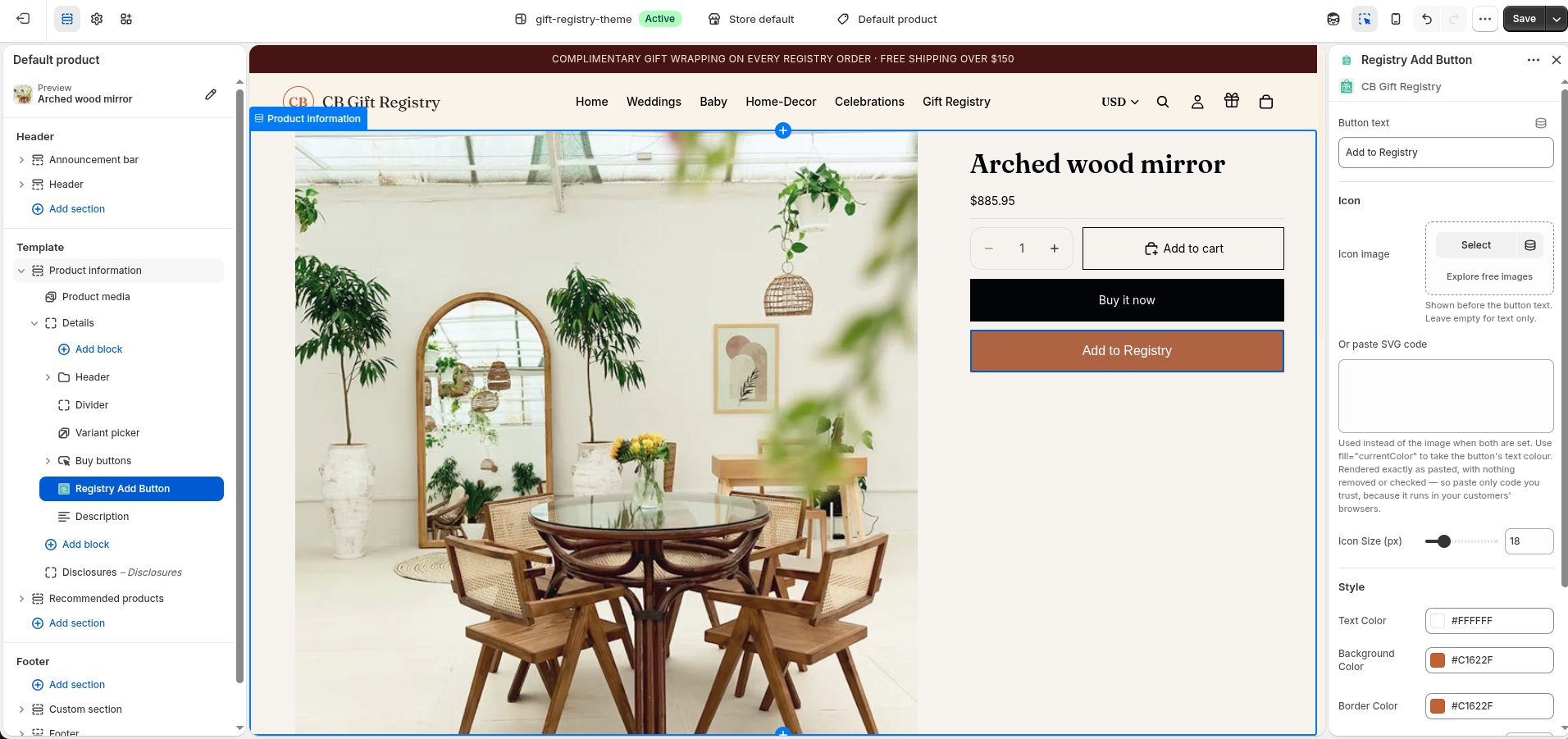
The colour of the main button inside the window comes from the app embed setting Launcher & Product Page Button Background.
How the button behaves
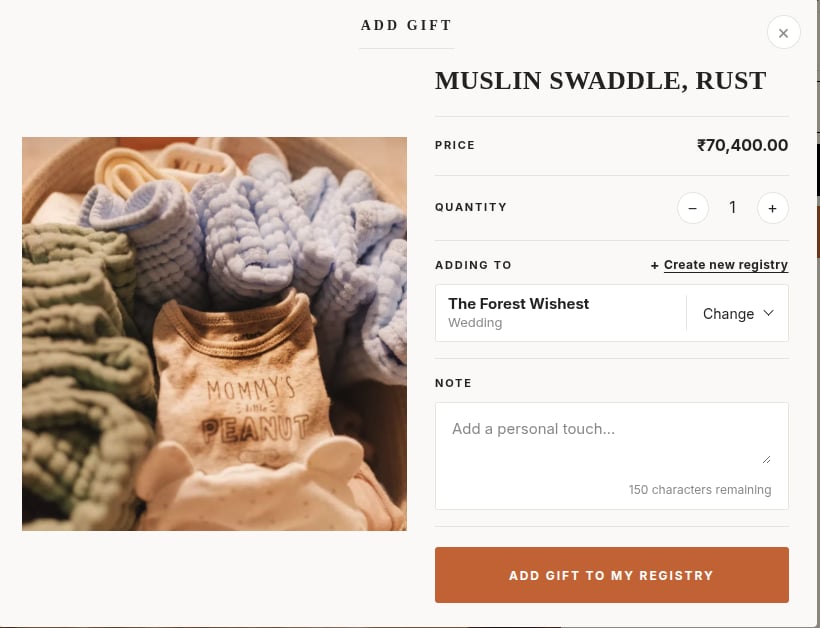
- Signed-out customers are taken to the registry home, where they are asked to sign in.
- Customers with no registry see Create Your First Registry.
- The selected variant is the one added. Sold-out variants can’t be added.
- Adding the same product and variant twice shows “This product is already in your registry.” Customers change the quantity from their registry instead.
- Only product registries are listed in the window.
- If you turn off Offer Product registries in General settings, the button is hidden from customers.