
The template editor is part of the Professional plan and higher.
Open a template
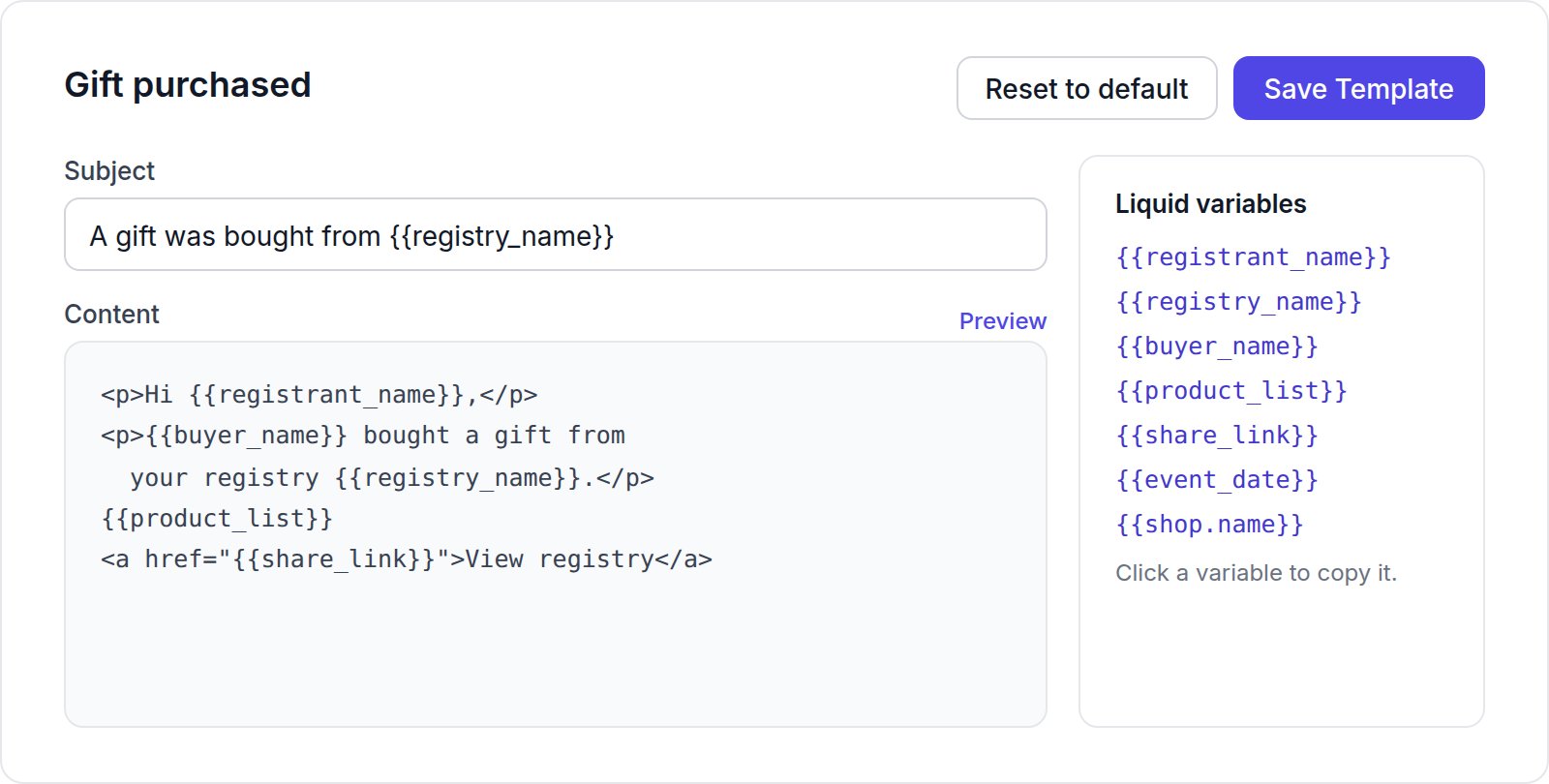
- Subject: the email’s subject line;
- Content: the email’s HTML;
- Preview: shows the email with sample data, including changes you haven’t saved yet;
- Reset to default: puts the original template back in the editor. Click Save Template to keep it.
Variables
Variables are replaced with real values when the email is sent. Click a variable in the Liquid variables sidebar to copy it.
Each template’s sidebar lists the variables available for that email.
Show content only when a value exists
Wrap content in these comments to show it only when a value is set, or only when it isn’t:Templates use simple
{{variable}} placeholders, not full Shopify Liquid. Filters and loops such as {{ x | upcase }} or {% for %} are not supported.